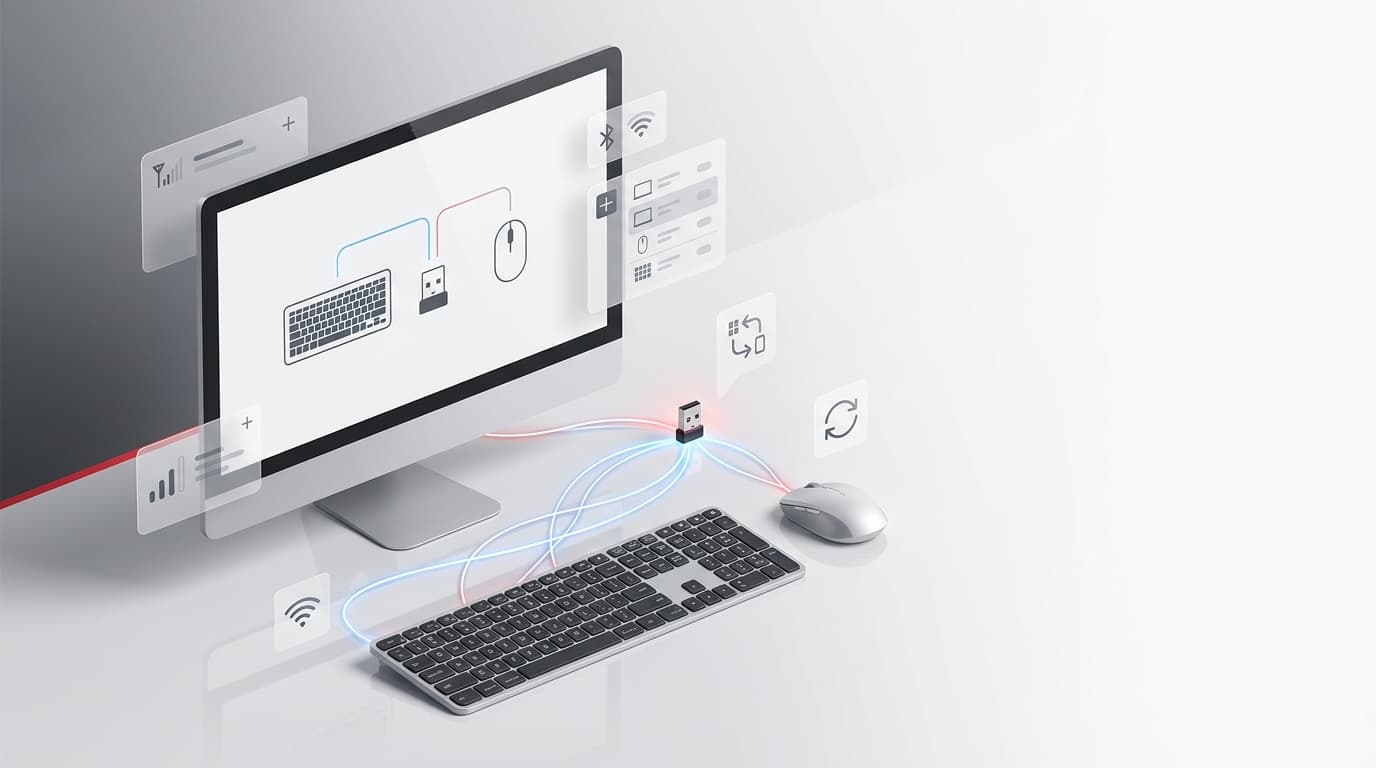
If you’ve searched for Logitech Unifying Software recently, you’ve likely landed on a support page that feels like a dead end. That’s because the standalone app has been retired. This guide explains what happened, what replaced it, and exactly how to get your mouse, keyboard, or receiver working again.
What Logitech Unifying Software Actually Is

Logitech Unifying Software was the original utility built to pair compatible wireless mice and keyboards with a single small USB receiver. Instead of plugging in a separate dongle for every device, one Unifying receiver could handle several peripherals at once, which made it a favorite among people running multiple monitors or minimal desk setups.
For years, this tool was the default way to manage pairing, troubleshoot dropped connections, and reassign devices to a new receiver. The Unifying logo on both the receiver and the device confirmed compatibility, and the software itself was lightweight, quick to install, and rarely needed after initial setup.
Is Logitech Unifying Software Still Supported?
No, and this is the part that trips up most people searching for it today. Logitech has officially discontinued the standalone Unifying utility. The company’s support pages now state plainly that the app is no longer maintained, and anyone using a Unifying-compatible mouse, keyboard, or receiver is directed toward Logi Options+ instead.
This doesn’t mean your hardware stopped working. The receivers themselves still function exactly as before. What changed is the software layer used to pair and manage those devices.
Why Logitech Retired the Unifying App
Logitech consolidated several of its older tools, including Logitech Options, SetPoint, and the original Unifying utility, into one unified platform. Logi Options+ now handles pairing, button customization, and firmware updates across nearly the entire current device lineup, which simplifies support on Logitech’s end and reduces the number of separate apps users need to install.
For everyday users, this means one program now does the job that used to require juggling multiple utilities depending on which Logitech product you owned.
How to Pair a Device Using Logi Options+ Instead
Since the original Unifying Software is no longer available for new installations, here’s how the process works now.
Step one: install Logi Options+. Download it directly from Logitech’s official software page. The current version requires Windows 10 or later, or macOS 14 or later, so an older machine may need an alternate approach.
Step two: connect the receiver. Plug the Unifying receiver into an available USB port. If the receiver and the device both display the Unifying logo, they’re compatible with each other.
Step three: open the pairing flow. Logi Options+ will detect the receiver automatically and guide you through adding a mouse or keyboard, the same way the older Unifying Software once did.
Step four: repeat for additional devices. A single Unifying receiver can support up to six compatible mice and keyboards, so multiple peripherals can share one USB port without extra hardware.
Troubleshooting Common Unifying Receiver Issues

Receiver not detected. Try a different USB port, ideally one directly on the computer rather than through a hub, since some hubs interfere with the receiver’s signal.
Device paired but not responding. Turn the mouse or keyboard off and back on, then reopen Logi Options+ to refresh the connection.
Lost the original receiver. A replacement Unifying receiver can be paired with your existing device through Logi Options+, as long as both carry the Unifying branding.
Older computer can’t run Logi Options+. Pairing can typically be completed on a different, supported computer first, after which the receiver and device can be moved to the original workstation.
Logi Options+ for Business and IT Environments
Organizations managing several workstations don’t need to install the software manually on each machine. Logitech offers deployment tools that let IT administrators push Logi Options+ across a fleet of computers, along with an offline installer suited to air-gapped networks or environments where sending analytics data isn’t appropriate. This matters for workplaces still running Unifying-era hardware at scale, since it keeps device pairing consistent without touching every desk individually.
While choosing the right wireless peripherals can improve your everyday computing experience, keeping track of digital subscriptions is also important when you rely on multiple software tools and online services. Renew Reminder helps users track subscription plans and renewal dates, making it easier to avoid unexpected renewals and stay organized. The app is available for both Android and iOS, allowing users to manage important subscription reminders conveniently across their devices.
Frequently Asked Questions
Is Logitech Unifying Software still available for download?
The standalone Unifying Software is no longer offered for new installations or updates. Logitech directs users to Logi Options+, which now manages pairing for Unifying-compatible devices.
Can I still use my old Unifying receiver?
Yes. The Unifying receiver hardware still works. What changed is the software used to manage it, not the receiver’s functionality.
How many devices can one Unifying receiver support?
A single compatible Unifying receiver can pair with up to six mice and keyboards, letting you consolidate several peripherals through one USB port.
Do I need Logi Options+ if my mouse already works?
If the device is already paired and functioning, you may not need to reinstall anything. Logi Options+ becomes necessary when pairing a new device, adding a replacement receiver, or customizing buttons.
What if my computer doesn’t meet the Logi Options+ system requirements?
Older systems that don’t support Windows 10 or macOS 14 may not run the current app. In that case, complete the pairing on a compatible computer, then move the receiver and device to the original machine.
Does switching to Logi Options+ change how my keyboard or mouse performs?
No. Logi Options+ handles the same pairing and customization tasks the original Unifying Software did, just through an updated interface with broader device support.
Final Thoughts
Searching for Logitech Unifying Software in 2026 usually means solving a practical problem: a missing receiver, a new computer, or a device that needs pairing. The standalone app is gone, but the hardware and the underlying Unifying technology haven’t disappeared. Logi Options+ picks up exactly where the old utility left off, and once it’s installed, reconnecting your Logitech peripherals takes only a few minutes.