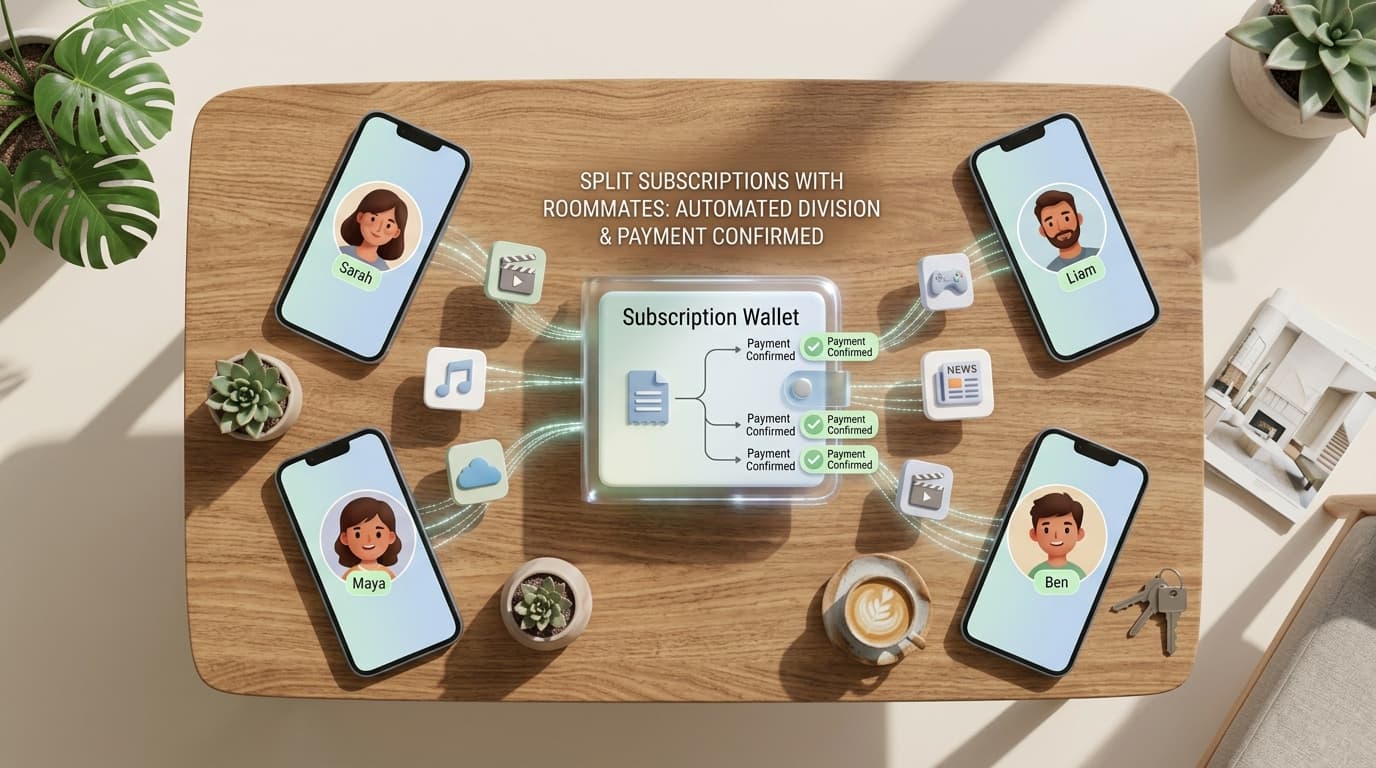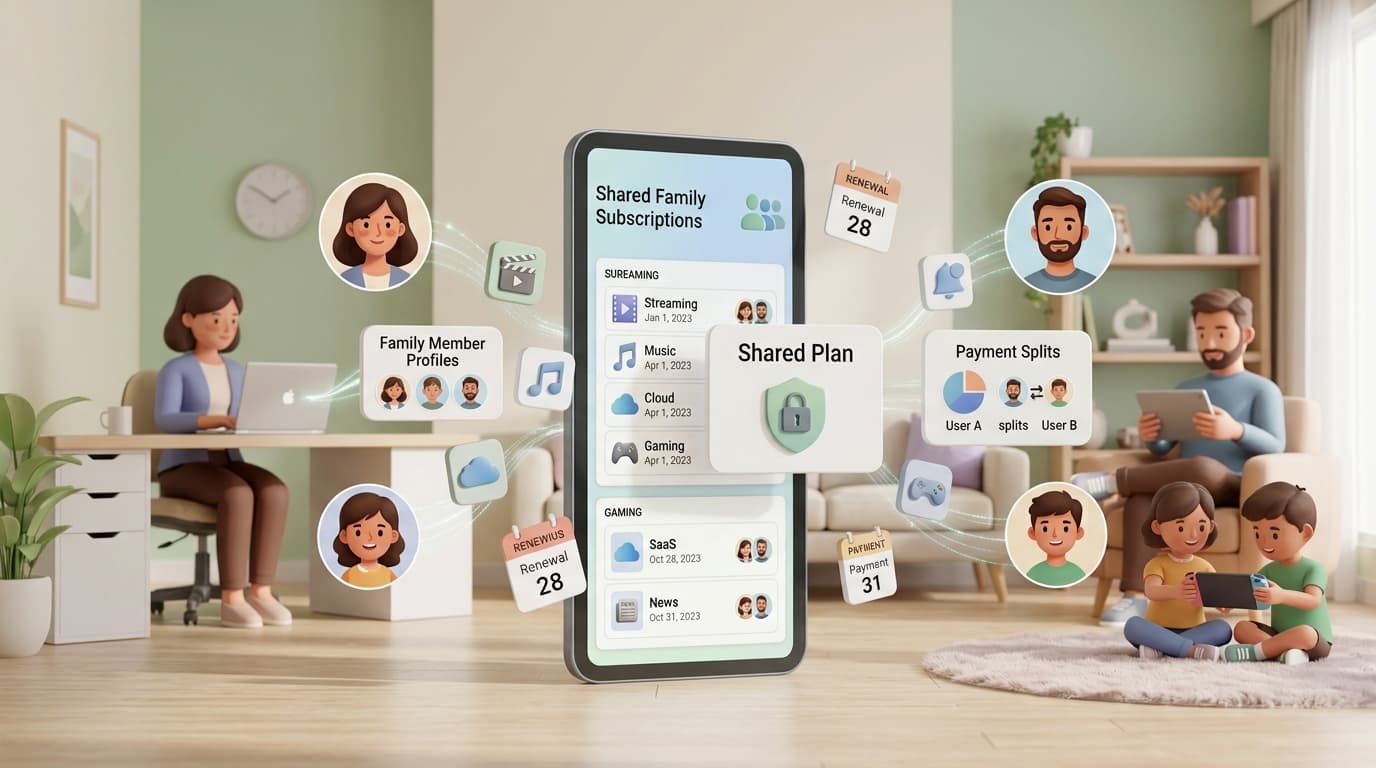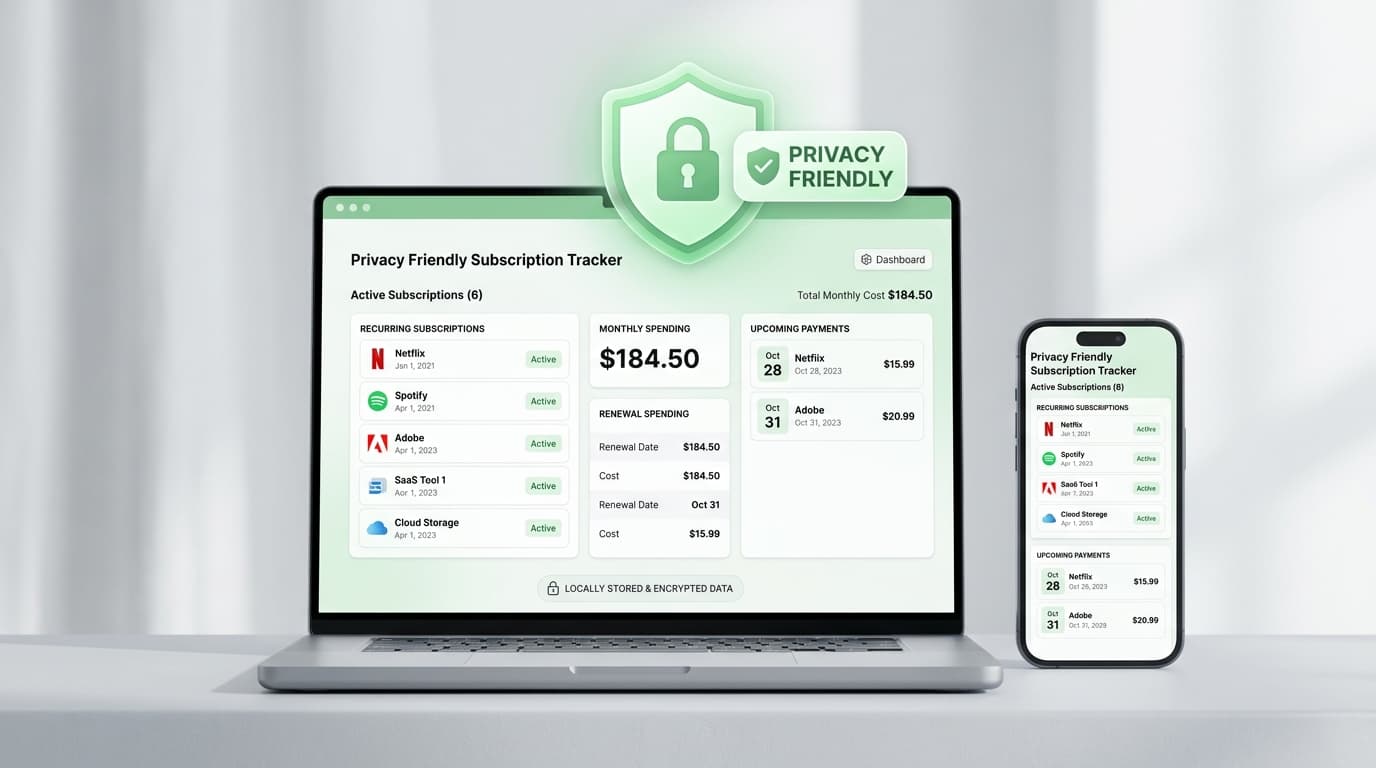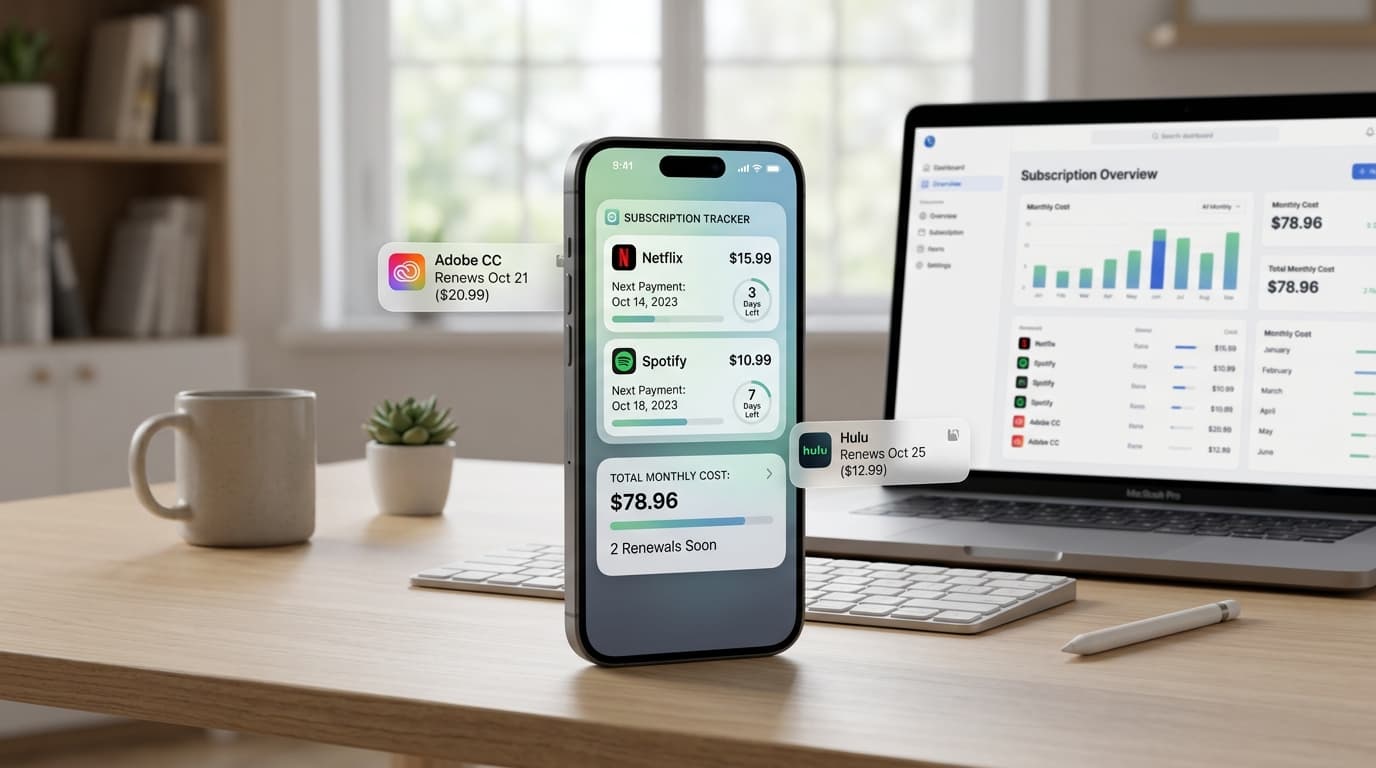
You check your phone about a hundred times a day. You open a subscription app maybe once a month. A subscription tracker with widget closes that gap by putting your next renewal on the screen you already look at.
This guide explains how a subscription tracker with widget works, how to add one to your home screen, and what a useful widget should show.
What Is a Subscription Tracker With Widget?

It is a subscription tracking app that also offers a small panel for your home screen or lock screen. The panel shows upcoming renewals, amounts, or a monthly total at a glance.
You might see it described as a renewal widget, a bill reminder widget, or a home screen subscription dashboard. The idea is simple: the information comes to you, so you skip the tap, the load time, and the login.
Why a Widget Beats Opening the App
Reminders fail for a boring reason. Opening an app takes effort, and effort loses to habit.
A notification arrives once and gets swiped away. A widget stays put. Every time you unlock your phone, the next charge is right there, and that quiet repetition builds awareness.
A subscription tracker with widget also helps in small moments. You can check whether a trial ends tomorrow while waiting for coffee, without hunting through menus.
What a Good Widget Should Show
A widget has very little room, so the choices matter. The best ones display:
- The next renewal: Service name and date, ideally with a day countdown.
- The amount: So you know what is about to leave your account.
- A short upcoming list: Three to five items in a medium-size widget.
- A monthly or yearly total: Handy in a larger size.
- Clear sizing options: Small for one renewal, medium or large for a list.
If the widget only shows a logo and a button, it is a shortcut, not a dashboard.
How to Add a Widget on iPhone
The steps are the same for any app that offers one.
- Touch and hold an empty area of your home screen until the icons shake.
- Tap the plus button in the top corner.
- Search for the app by name.
- Swipe to pick a size.
- Tap Add Widget, then Done.
For the lock screen, touch and hold it, tap Customize, and choose the widget area.
How to Add a Widget on Android
Android layouts vary a little by brand, but the path is close.
- Touch and hold an empty spot on the home screen.
- Tap Widgets.
- Scroll or search for the app.
- Choose a size and drag it into place.
- Resize by holding the widget and dragging its edges.
If the app is missing from the widget list, it may not offer one yet.
Widget, Notification, or Calendar Alert?
Each tool does a different job. Here is how they compare:
| Tool | Best for | Weak spot |
|---|---|---|
| Widget | Constant, passive awareness | Limited space |
| Push notification | A timely warning | Easy to dismiss |
| Calendar alert | One-off dates | No cost totals |
| Full app view | Editing and reviewing | Requires opening |
The strongest setup combines two. Use a widget for daily awareness and a notification several days ahead for action.
Where to Find One
Before installing anything, confirm the widget exists. Many subscription apps skip it, and store descriptions do not always mention it.
Renew Reminder is a recurring payments and renewal tracker. Check the listing on Google Play for Android or the App Store for iPhone and iPad for current widget support, sizes, and pricing, since features change with updates.
Three Ways People Use a Widget

The trial watcher. You sign up for a free trial, add the end date, and the widget counts down. When it reads “2 days,” you decide whether to keep it.
The budget keeper. A large widget showing the monthly total keeps recurring costs in view. Seeing the number daily makes new sign-ups feel heavier.
The annual renewal catcher. Yearly plans are the easiest to forget. A widget showing the next three renewals often surfaces one you had not thought about in months.
Setting Up Your Widget for Real Use
Adding the widget takes seconds. Making it useful takes a little more.
First, fill the app with accurate data. A widget is only as good as the list behind it. Check your last three months of statements and add every repeating charge.
Second, place the widget on your first home screen, not page four. Visibility is the whole point.
Third, update amounts when prices change. A stale number defeats the purpose.
Privacy on a Lock Screen
Widgets on your lock screen can be seen by anyone who glances at your phone. Subscription names and amounts can reveal more than you expect, such as health or dating services.
Keep the widget on the home screen if you share your phone often. On the lock screen, choose a version that shows only a count or date. Many phones also let you hide lock screen content until the device is unlocked.
Frequently Asked Questions
What does a subscription tracker with widget do?
It shows upcoming renewals and costs on your home or lock screen, so you can see them without opening the app.
Does every subscription tracker have a widget?
No. Many do not. Check the store listing or app settings for widget support before you commit.
Can a widget cancel my subscriptions?
No. It displays information and reminds you. You cancel through the provider or your app store account.
Which widget size works best?
A small widget suits one upcoming renewal. A medium one fits a short list. Choose a large size if you want totals and several entries.
Will a widget drain my battery?
Widgets refresh periodically and use very little power. If battery matters, pick a smaller size and fewer refreshes.
Is a subscription tracker with widget safe?
Safety depends on the app. Review the privacy policy, requested permissions, and the store’s data labels, and avoid apps that ask for your banking password.
Final Thoughts
A reminder you never see is a reminder you never use. A subscription tracker with widget keeps your next charge in plain sight, which is often all it takes to cancel on time.
Add your plans, place the widget where you will notice it, and pair it with an advance alert. A subscription tracker with widget works best when you set it up once and glance at it daily.